

Key takeaways
- Laptop computer prices in Sri Lanka are driven mostly by the processor, RAM, storage type and display, so those are the specs worth paying for.
- For everyday work, 16 GB of RAM and an SSD deliver the biggest real-world speed gains, while extras like a discrete GPU only matter for gaming or heavy creative work.
- Buying a laptop that matches your actual tasks, rather than the biggest spec sheet, frees up budget for the accessories that keep you comfortable.
- A laptop stand, external keyboard and a supportive chair fix the posture problems that laptops naturally create.
The best value laptop is the one that matches your work, not the one with the longest spec sheet. In Sri Lanka you can spend anywhere from budget territory to several lakhs, and much of that gap comes down to a handful of components you may or may not actually need. This guide walks you through what drives laptop computer price in Sri Lanka, how to match specs to real tasks, and how to turn the money you save into a workspace that keeps you comfortable all day.
If you are here because you are close to buying, good. Let us help you spend on the parts that matter and skip the ones that do not.

What Drives Laptop Computer Price in Sri Lanka
When you compare two laptops with very different price tags, the difference almost always lives in five places:
- Processor (CPU): The brain of the machine. Newer and faster chips cost more, and the jump from an entry chip to a high-end one is one of the biggest price movers.
- RAM: The short-term memory that lets you juggle browser tabs, spreadsheets and calls at once. More RAM means smoother multitasking.
- Storage: A solid-state drive (SSD) is faster and pricier than an older hard drive (HDD). Capacity adds cost too.
- Display: Screen size, resolution and panel quality all affect price. A sharp, colour-accurate panel costs more than a basic one.
- Graphics (GPU): A separate, dedicated graphics card adds serious cost and is built for gaming and heavy creative work.
Two more things quietly shape the final number: the brand and the build. Metal chassis, longer battery life and a lighter body push prices up, as does an authorised warranty. On that last point, buying from an authorised seller with a genuine manufacturer warranty is worth a little extra for the peace of mind, especially in a market where grey imports float around.
Exchange rates and import duties also move prices in Sri Lanka more than they do elsewhere, so it pays to check current listings from a few reputable shops before you settle.
Matching Specs to Your Actual Work Needs
Here is where most people either overspend or underbuy. The trick is to start from what you do, then work backwards to the specs.
For everyday work, study and browsing
If your day is email, documents, spreadsheets, video calls and a dozen browser tabs, you need a responsive machine, not a powerful one. The two upgrades that make the biggest difference to how fast a laptop feels are RAM and an SSD.
On memory, the guidance from laptop makers is clear. HP's buying guide positions 16 GB as the baseline for comfortable productivity and notes that 8 GB can cause multitasking lag once you open several apps at once (HP, "How much RAM do I need"). Independent tech guides agree, describing 16 GB as the sweet spot for most buyers and reserving 32 GB for heavier workflows.
So for this group, aim for:
- A recent mid-range processor
- 16 GB of RAM
- An SSD (256 GB is workable, 512 GB is comfortable)
- A clear full-HD display
That combination handles daily work smoothly without paying for horsepower you will never call on.
For gaming, video editing and design
This is the group that genuinely benefits from a dedicated GPU, a faster processor and often 32 GB of RAM. Rendering, exporting and running demanding games all lean on that extra muscle. If this is you, the higher price is money well spent, because those components are doing real work every day.
For light and travel-focused use
If you mostly write, browse and watch, a lightweight laptop with modest specs and long battery life will serve you better than a heavy powerhouse. Prioritise weight and battery over raw performance.
Avoiding Overspending on Features You Will Not Use
Once you know your category, it becomes easier to spot the upsells that add cost without adding value for you.
- A dedicated graphics card you never task. If you are not gaming or editing, integrated graphics are plenty. A discrete GPU adds a meaningful chunk to the price and drains battery faster.
- Top-tier processors for light work. The fastest chips are built for sustained heavy loads. For browsing and documents, a mid-range chip feels identical in daily use.
- More storage than you need. Cloud storage and external drives are cheap. You rarely need the largest internal SSD on offer.
- 4K screens on small laptops. A high-resolution panel looks lovely, but on a compact screen the difference is subtle and it eats battery. Full HD is the sensible sweet spot for most.
- Specs bought "to be future-proof." Buying far beyond your needs today rarely pays off, because prices fall and better options arrive by the time you would have grown into them.
A quick way to sanity-check any laptop: list the three most demanding things you do on a computer. If a feature does not help with those three, you probably do not need to pay for it.
Reinvesting Savings Into Ergonomic Accessories
Say you skip the discrete GPU and the oversized SSD and save yourself a comfortable margin. Here is the part most buyers miss: a laptop alone is an ergonomic compromise. Its screen and keyboard are attached, so when the screen sits at a healthy height, the keyboard is too high, and when the keyboard is comfortable, you are hunched over looking down.
That hunch is not harmless. Research on posture and screen work consistently links looking down at a low screen with greater neck strain, and laptops used on a lap, sofa or bed pull your head down further than a proper desk setup. The fix is simple and affordable, and this is exactly where your saved budget earns its keep.
A few accessories solve most of it:
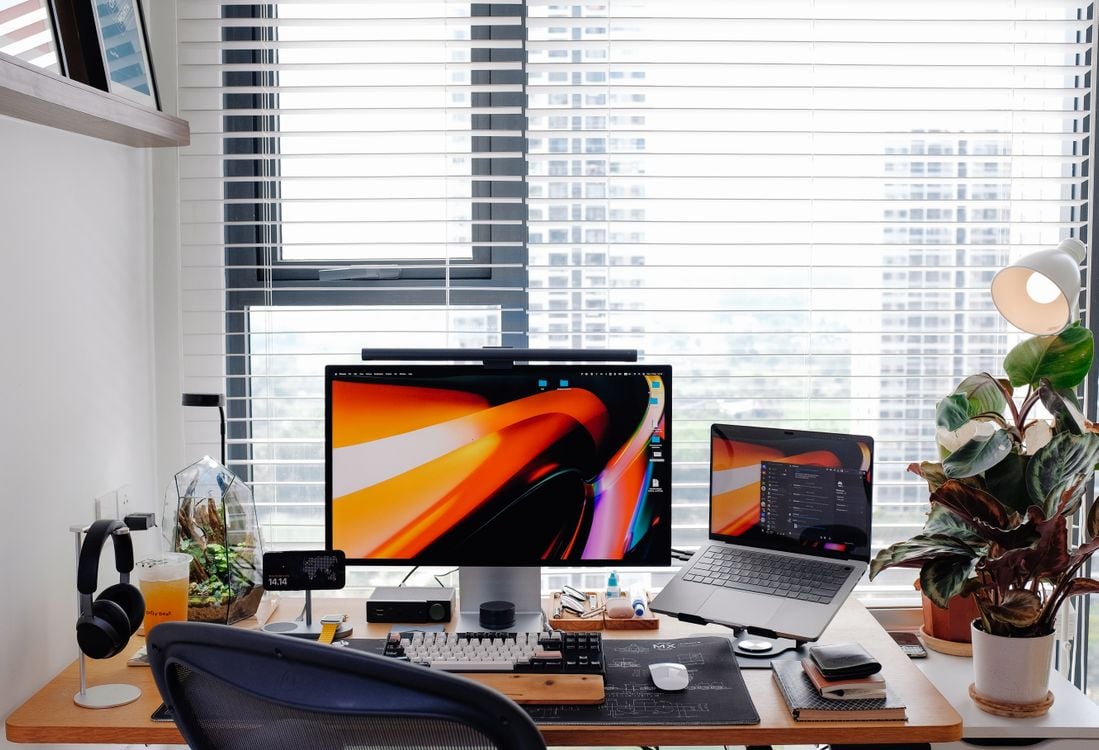
- A laptop stand raises the screen toward eye level so you stop craning your neck. Pair it with an external keyboard and mouse so your hands stay relaxed and low.
- An external keyboard and mouse let you type at the right height once the laptop is lifted.
- A supportive chair keeps your back and hips in a neutral position through long sessions.
- A monitor arm or riser, if you add an external screen, positions it precisely for your eye line.
If you are weighing which lifting solution suits you, our comparison of a laptop stand versus a monitor arm explains when each makes sense. At Simplist Desk, we stock laptop stands, external keyboards, monitor arms and ergonomic chairs from authorised brands, with genuine warranties and islandwide delivery, so you can complete the setup in one place.

Building a Complete, Comfortable Workstation
With the right laptop chosen and a little budget set aside, you can assemble a workspace that actually supports how you work. Here is a simple order to build it in:
- Start with the chair. You sit in it for hours, so a chair that supports your lower back matters more than almost anything else on the desk.
- Raise the screen. Put the laptop on a stand, or connect an external monitor, so the top of the screen sits around eye level.
- Free your hands. Add an external keyboard and mouse so you type at a natural height with relaxed shoulders.
- Tidy the cables. A cable manager or two keeps the desk clear, which genuinely makes the space nicer to sit at.
- Light it well. A good desk lamp reduces eye strain in the evenings and makes the whole setup feel finished.
Get these five right and the difference is not subtle. Your posture improves, long days feel less punishing, and the desk becomes somewhere you actually want to sit. For a full walkthrough tuned to local conditions, our guide on setting up an ergonomic home office in Sri Lanka covers the details.
Spend Smart, Sit Comfortably
The smartest laptop purchase is not the flashiest one. Decide what you do most, buy the specs that serve those tasks, and skip the extras that only pad the price. Then take the money you saved and put it into the stand, keyboard and chair that turn a bare laptop into a workspace your body will thank you for.
Ready to finish the setup? Browse Simplist Desk for laptop stands, monitor arms, keyboards and ergonomic chairs, all authentic, all covered by warranty, and delivered islandwide, so your new laptop lands on a desk that is genuinely comfortable to use.
Frequently asked questions
How much RAM do I really need in a laptop?
For browsing, office work and video calls, 16 GB is the comfortable baseline in 2026. Heavy creative or engineering work benefits from 32 GB, while 8 GB feels tight once you open several apps at once.
Is an SSD worth paying extra for?
Yes. A solid-state drive is the single upgrade you will notice most every day, since it makes the laptop boot, open apps and load files far faster than a traditional hard drive.
Do I need a laptop with a dedicated graphics card?
Only if you game, edit video or run 3D and design software. For office work, browsing and streaming, the integrated graphics built into modern processors are more than enough.
Why pair a new laptop with a laptop stand?
A laptop screen sits too low for healthy posture, so you end up looking down and straining your neck. A stand raises the screen to eye level, and you add an external keyboard so you can still type comfortably.