
Key takeaways
- A dual monitor setup gives you more usable screen space so you switch windows less and keep your focus on one task.
- Set the top of each screen at or just below eye level and keep both an arm's length away to protect your neck and eyes.
- A dual monitor arm frees desk space and lets you tilt, raise and angle each screen independently for a comfortable fit.
- Route cables through a tray or under-desk channel and label them so adding or swapping a screen stays tidy.
- A desk mat, a decent keyboard and good lighting finish the setup and make long work days feel easier.
A good dual monitor setup means positioning both screens at eye level and an arm's length away, mounting them on an arm to free up desk space, and tidying the cables so the whole thing stays calm and comfortable. Get those three things right and you gain room to work without the neck ache and desk clutter that trips up most first-time two-screen setups.
Plenty of people buy a second monitor, prop it on a book, and wonder why their neck hurts by Friday. The hardware is only half the job. How you place, mount and wire those screens decides whether a dual monitor workspace actually helps you or just adds mess. This guide walks you through the whole thing, from why two screens help to the small accessories that pull it all together.
Why a Dual Monitor Setup Helps You Get More Done
The main win is simple: more screen space means less time juggling windows. Instead of tabbing back and forth between a document and your research, you keep one on each screen and work across both at a glance. Writers keep notes beside the draft, coders keep the app running next to the code, and anyone on video calls can share one screen while reading the other.
The numbers back this up. Jon Peddie Research surveyed more than 1,000 users and found an average expected productivity increase of 42% for people using multiple displays, according to its multi-display study. That figure is self-reported rather than measured in a lab, so treat it as a strong signal of how much people value the extra space rather than a precise promise. In day-to-day terms, the benefit most people feel is fewer interruptions: you stop losing your place every time you switch tasks.
A second screen also cuts down on the tiny friction that drains focus. Fewer clicks to find a window, fewer overlapping panels, less scrolling. Over a full day those small savings add up to a calmer, more productive workspace.
Position Your Screens to Protect Your Neck and Eyes
This is where most setups go wrong, and it costs nothing to fix. The goal is to keep your head level and your eyes relaxed so you are not craning or squinting for hours.
A few plain rules make the difference:
- Height: Set the top of each screen at or just below eye level. Your eyes should fall naturally on the upper third of the display, so you look slightly down rather than up.
- Distance: Keep each monitor about an arm's length away. Roughly 50 to 70 cm works for most people. If text looks small at that distance, increase the font size rather than pulling the screen closer.
- Angle: Tilt each screen back a touch so it faces your eyes squarely and you are not catching reflections.
The US Occupational Safety and Health Administration lays out the same principles in its computer workstation guidance: screens at or below eye level, positioned to limit glare, and far enough away to keep your eyes comfortable. These apply to each screen in a pair.
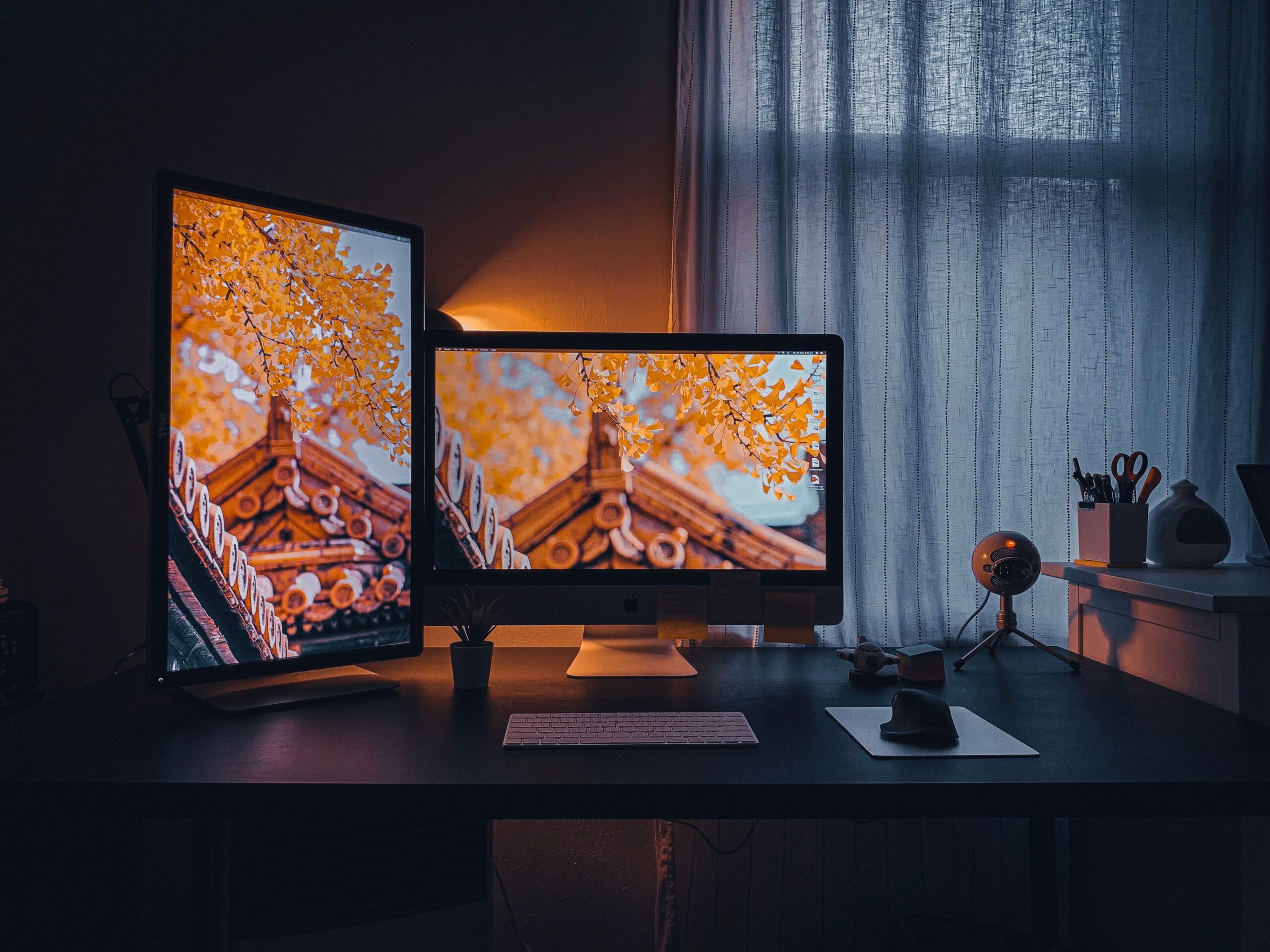
For two monitors, placement depends on how you use them. If you work across both equally, push the inner edges close together and center the pair in front of you, then angle each one slightly inward so you face the center. If one screen does most of the work, keep that one straight ahead and set the second to one side, angled toward you for quick glances. In Sri Lanka's bright daylight, turn the pair perpendicular to a window where you can, so sunlight does not wash out the screens or bounce glare into your eyes. If you want a deeper look at desk-related aches, our guide on easing neck and back pain at your desk goes further.

Use a Dual Monitor Arm for Real Flexibility
The stands that ship with most monitors are fine, but they are rigid and they eat desk space. A dual monitor arm clamps to the back of your desk and holds both screens on adjustable joints, which changes how the whole setup feels.
Why an arm earns its place:
- Free desk surface. The bases disappear, so you reclaim the space under your screens for a keyboard, notebook or coffee.
- Independent adjustment. Raise, lower, tilt, swivel and rotate each screen on its own until both sit level and comfortable.
- Easy repositioning. Push the screens back when you need room to spread out, then pull them forward for focused work.
- Cleaner look. Most arms route cables through the poles, so wires stay hidden.
When you shop for one, check two specifications first. The load rating tells you the weight range each arm supports, usually given per screen, so confirm your monitors fall inside it. The VESA mount pattern, commonly 75×75 mm or 100×100 mm, has to match the holes on the back of your monitor. At Lakshan we stock dual monitor arms from brands like North Bayou alongside single arms and risers, each with the load rating and VESA pattern listed so you can match them to your screens before you buy, with manufacturer warranties and islandwide delivery. If you are still weighing a desk mount against a simpler option, our breakdown of a laptop stand versus a monitor arm helps you decide.
Manage Cables and Desk Space So It Stays Tidy
Two screens mean more cables: two power leads, two video cables, plus whatever runs to your computer and peripherals. Left loose, they tangle behind the desk and make any future change a chore. A little planning keeps the workspace clean.
Work through it in order:
- Group the cables by where they go. Keep power leads together and video cables together so you can trace each one later.
- Run them along one path. Use the channel in your monitor arm, then an under-desk cable tray or a set of adhesive clips to carry everything to one corner.
- Leave a little slack. Do not pull cables tight. A small loop lets you move a screen without unplugging anything.
- Label both ends. A simple tag on each cable saves you crawling under the desk the next time you swap a monitor.
- Tidy the power. A single surge-protected power strip mounted under the desk keeps the plugs off the floor and in one place.
A desk organizer or a small tray keeps the top of your desk clear of the clutter that cables attract, like chargers and spare dongles. For a full walkthrough, our cable management tips for a clutter-free desk cover trays, clips and channels in more detail.
Accessories That Complete a Dual-Screen Setup
Once the screens are placed and the cables are tidy, a few additions make the workspace genuinely comfortable to live in:
- Desk mat. A large mat gives your keyboard and mouse a smooth, consistent surface and ties the desk together visually.
- External keyboard and mouse. If you work from a laptop feeding the two monitors, a separate keyboard and mouse let you sit back at a proper distance.
- Desk lighting. A warm, glare-free lamp or light bar reduces the contrast between a bright screen and a dark room, which is easier on the eyes.
- Phone and headphone stands. Small holders keep your phone propped where you can see notifications and your headset off the desk surface.
Lighting in particular is worth getting right, since two bright screens in a dim room tire your eyes faster. Our guide to workspace lighting that reduces eye strain explains how to balance it.
Your Next Step
Start with placement before you spend anything. Tonight, raise both screens so the tops sit at eye level, slide them to an arm's length, and angle them slightly inward. If they will not sit level on their stock stands, that is your signal to add a dual monitor arm, and a desk mat and a bit of cable tidying will finish the job. Browse Lakshan's monitor arms and desk accessories at desk.simplist.lk, check the load rating and VESA pattern against your screens, and build the two-screen workspace you will actually enjoy using.
Frequently asked questions
How far apart should two monitors be?
Place the two inner edges close together, almost touching, and center the pair in front of you if you use both equally. If one screen is primary, keep that one straight ahead and angle the second toward you.
Do I need identical monitors for a dual setup?
No. Matching size and resolution looks cleaner and feels smoother, but two different screens work fine. Just set each one to the same height so the tops line up.
Is a dual monitor arm worth it over the stock stands?
For most people, yes. An arm clears the desk surface, lets you fine-tune height and angle for each screen, and makes it easy to push the monitors back when you need room.
Can my laptop run two external monitors?
Many modern laptops can drive one or two external screens over HDMI, USB-C or a docking station. Check your laptop's port list and graphics support before buying a second monitor.